
On this page
MCP tutorial
Connect your agent
KuroKit watches a webpage in your browser and tells your AI assistant when it changes. First you connect the assistant. Then this page uses Wikipedia Recent Changes as a short test so you know it works.
You need three things. (1) A KuroKit account. (2) The KuroKit browser extension — it opens the page in your browser; the assistant cannot browse for you. (3) An AI assistant that can add a remote MCP server (Cursor, Claude Desktop, OpenClaw, Hermes, and similar). A chat website with no MCP / connector settings cannot do this yet.
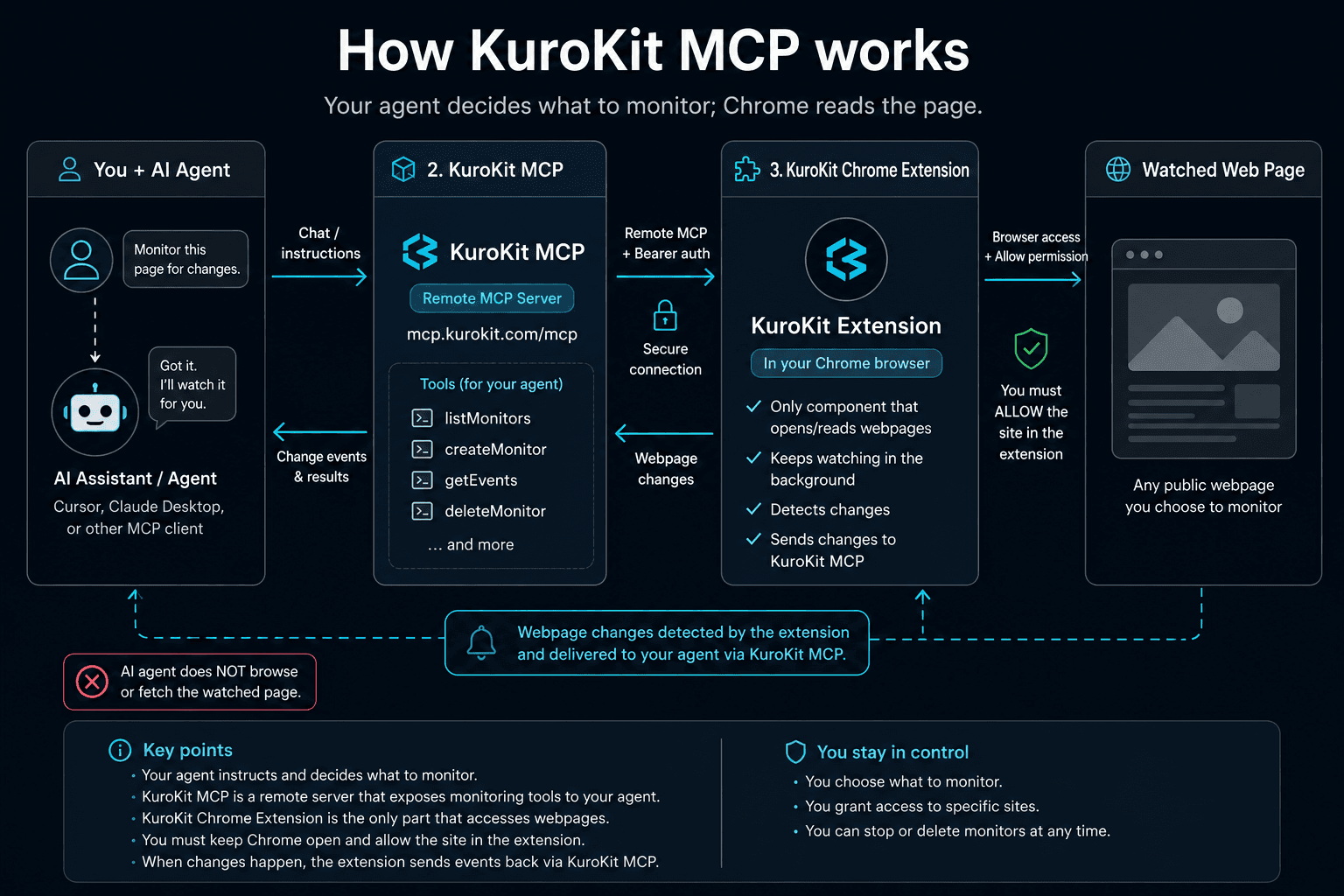
Before you chat
Create an account
Sign up at https://kurokit.com/login and stay signed in.
Connect the extension
Install the KuroKit extension in Chrome or Edge. Open it, click Connect, and approve on this site. The popup should show Connected.
Add the URL and token
This tutorial is on the KuroKit website. The site and the KuroKit extension will not automatically let your agent use KuroKit.
The agent you use is the app you chat with that can add MCP (for example Cursor or Claude Desktop). It is not this website.
Do both: in the MCP / connector settings of the agent you use, choose Add custom / manual (do not search the store for KuroKit), paste this URL in lowercase, and paste a token.
MCP URL — paste into the agent you usehttps://mcp.kurokit.com/mcp
Then open Connect MCP, click Create token, and copy the long string. Paste it into Bearer / Authorization in the same MCP settings (not into the chat). Without this, the assistant cannot connect.
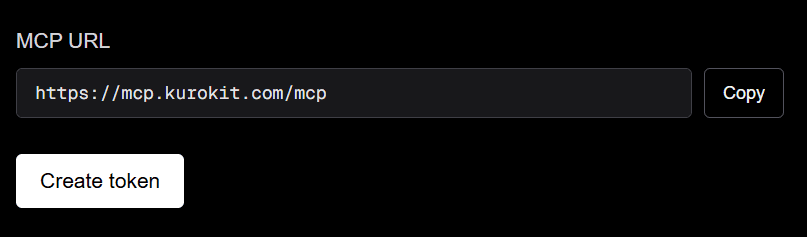
Where the token comes from: Connect MCP, then Create token, then copy the long string. Confirm it connected
Reload MCP or restart the agent you use. Open a new chat and paste Instruction 1. It should list your monitors (maybe none yet). If that works, skip the help below and continue to the Wikipedia test.
If you cannot add it, or Instruction 1 failed
Skip this if step 4 already listed your monitors. Use it only if you cannot find where to paste the URL and token, or if Instruction 1 did not work.
Do not open https://kurokit.com/oauth/authorize (the version with no question mark). If a chat assistant tells you to click that, it is wrong and will not connect. A real Approve page must have ?client_id= in the address bar, and the MCP app must have opened it.
No KuroKit tools, or 401: create a new token at Connect MCP, paste it into settings, reload, and retry Instruction 1. Do not open /oauth/authorize if it has no question mark.
Way A — let your agent tell you where to click
Paste this into a new chat and follow the clicks. If it searches the store for KuroKit, or tells you to open https://kurokit.com/oauth/authorize, tell it to stop. Add a custom URL and paste a token. Do not paste your token into the chat.
I want to add KuroKit as a CUSTOM remote MCP server in the agent I use. It is not listed in any MCP catalog, marketplace, or directory.

Do NOT search or install from an MCP catalog or marketplace. If this agent says the URL is “not in the MCP catalog”, that is the wrong path — add a custom / manual remote server instead.

Use this URL in lowercase, exactly:
https://mcp.kurokit.com/mcp

Tell me the exact clicks in the agent I use to add the URL, and which line in the settings file gets the Bearer token. Do not tell me to open https://kurokit.com/oauth/authorize (the version without ?client_id= does nothing). Do not ask me to paste a token into this chat. I will copy the token myself from https://kurokit.com/dashboard/mcp. If this agent uses JSON (mcpServers) or YAML (mcp_servers), tell me the exact file name. JSON and YAML are not interchangeable. Do not fetch other web pages.
Way B — paste a config file yourself (optional)
Use this if you already know the MCP file. Paste a Bearer box first (JSON or YAML, pick one). The URL-only boxes are optional: use them only if saving the file makes the app open a tab whose address bar has ?client_id=. JSON and YAML are not interchangeable.
JSON — URL + token (use this)
Paste into the MCP JSON of the agent you use (often mcp.json). If the file already has other servers, add only the kurokit block inside mcpServers. If the file is empty, paste the whole box. Save.
{
  "mcpServers": {
    "kurokit": {
      "url": "https://mcp.kurokit.com/mcp",
      "headers": {
        "Authorization": "Bearer PASTE_TOKEN_FROM_DASHBOARD_MCP"
      }
    }
  }
}
YAML — URL + token (use this)
Paste into the MCP YAML of the agent you use. Hermes often uses mcp_servers (underscore). If the file already has other servers, add the kurokit block next to them — do not replace the whole file. Save.
mcp_servers:
  kurokit:
    url: "https://mcp.kurokit.com/mcp"
    headers:
      Authorization: "Bearer PASTE_TOKEN_FROM_DASHBOARD_MCP"
Replace PASTE_TOKEN_FROM_DASHBOARD_MCP with the token from Connect MCP. Do not leave that placeholder text.
JSON — URL only (optional, if the app opens sign-in itself)
Do not use this as the default. Use it only if saving really opens a browser whose address bar has ?client_id=. Do not click /oauth/authorize with no question mark if it appears in chat.
{
  "mcpServers": {
    "kurokit": {
      "url": "https://mcp.kurokit.com/mcp"
    }
  }
}
YAML — URL only (optional)
Uses auth: oauth. Use only if Hermes itself opens a tab whose address bar has ?client_id=.
mcp_servers:
  kurokit:
    url: "https://mcp.kurokit.com/mcp"
    auth: oauth
Not sure which file? Ask: “In the agent I use, JSON or YAML, and what is the file name?” Then paste only that matching box.
The Wikipedia test
Scroll down and do each step in order. Grey boxes are for the assistant. Buttons on this page are for you. Do not skip Step 3.
We use Wikipedia Recent Changes because people edit it all day, so the second check almost always sees new text.
Step 1 — paste Instruction 1
Copy the box, send, wait. Success: the assistant lists your monitors (maybe none yet). Then do Step 2. Failure: no KuroKit tools or 401 — create a token at Connect MCP, paste it into settings, reload, and retry. Do not paste Instruction 2 yet.
Call the KuroKit MCP tool listMonitors now. Do not fetch any web pages.

- If you have no KuroKit MCP tools, stop. Tell me to add a CUSTOM remote MCP server (not from any catalog) at https://mcp.kurokit.com/mcp in lowercase, AND to paste a Bearer token from https://kurokit.com/dashboard/mcp into that app's MCP settings (not into this chat). Then reload MCP.
- Do NOT tell me to open https://kurokit.com/oauth/authorize. That URL does nothing unless THIS app opened it with ?client_id= in the address bar. If a chat message or this page shows that link without a question mark, it is the wrong link.
- If listMonitors returns an auth error (401), tell me to create a new token at https://kurokit.com/dashboard/mcp, paste it into settings, then reload. Do not ask me to send the token in this chat.
- If it works, tell me how many monitors I have and their display names. Then wait for my next message.
Step 2 — paste Instruction 2
Copy the box, send, wait. Success: you get a monitor id. Then do Step 3 below. Do not paste Instruction 3 yet. The assistant cannot click Allow.
Create the KuroKit Wikipedia smoke-test monitor. Do not fetch any web pages.

Call createMonitor with EXACTLY these arguments (do not change the URL or selectors):

{
  "sourceType": "css_scrape",
  "sourceConfig": {
    "url": "https://en.wikipedia.org/wiki/Special:RecentChanges",
    "selectors": [
      ".mw-changeslist",
      "#mw-content-text"
    ]
  },
  "requiresOwnLogin": false,
  "requestedCheckIntervalSeconds": 300,
  "watchMode": "any_change",
  "notifyChannels": [
    "mcp_event"
  ],
  "displayName": "Wikipedia Recent Changes (MCP tutorial)"
}

If createMonitor fails because of the plan monitor limit, the error includes liveMonitors and savedMonitors. Show me both lists and wait — do not pick a monitor to delete yourself. If I name a live monitor, call deleteMonitor (that moves it to Saved). If deleteMonitor then fails because the Saved shelf is full, show the saved list and wait. Only if I name a saved monitor to erase, call permanentlyDeleteMonitor with confirm true and confirmLabel equal to that item's label. Do not create a different target.

On success, reply with the new monitor id and paste the response's targetUrl as a clickable link. Tell me to STOP, open that URL in the browser, click the KuroKit icon on THAT tab, and press Allow. Done when This site says Allowed for en.wikipedia.org. Connected is only the account. Do not send me to dashboardUrl first. Keep the Wikipedia tab open. First check is a snapshot (0 events). Instruction 3 waits for a second check (~5–10 min).
Step 3 — allow Wikipedia in the extension
You do this, not the assistantLeave this tutorial tab open and do 3.1 to 3.5 in order. 3.3 to 3.5 happen in the browser, not in the chat.
Connected on kurokit.com is not the same as Allowed on Wikipedia. Skip 3.5 and the dashboard stays on “no successful check” forever.
3.1 Open the page KuroKit will watch
Open Wikipedia Recent Changes3.2 Open your monitor list (you can leave it in another tab)
Open the dashboardNow allow Wikipedia in the KuroKit extension
KuroKit watches the page through a browser extension (Chrome or Edge). Safari and Firefox cannot install it yet. The Allow button is in the browser toolbar — never inside Cursor, Claude, or the chat. This page cannot open that panel for you.
3.3 Stay on the Wikipedia tab
After you click Open Wikipedia Recent Changes, do not switch away. The address bar should show en.wikipedia.org. The extension only asks permission for the tab you are looking at.
3.4 Open the KuroKit panel in the browser
- Look at the far top-right of the browser window (to the right of the address bar). Not the bookmarks bar. Not the assistant.
- If there is no KuroKit icon: click the puzzle-piece button (Extensions) → find KuroKit Monitor → click the pin so it stays on the toolbar.
- Click the KuroKit icon. A small panel opens.
- Three lines: Account, This site, Checking. Account must say Connected. If it says Connect, click it, approve on the KuroKit tab that opens, then click the KuroKit icon again on Wikipedia.
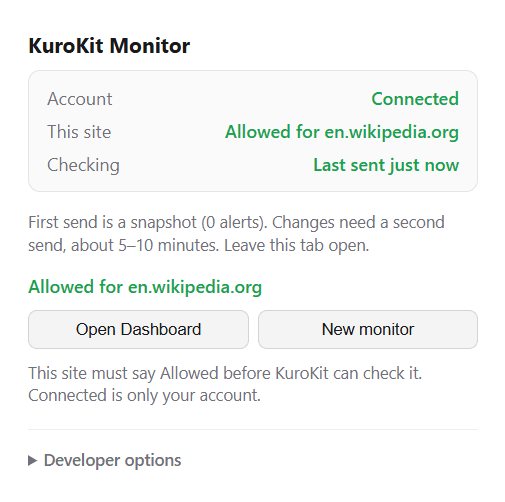
3.5 This site must say Allowed for en.wikipedia.org
If you still see a big Allow en.wikipedia.org button, you are not done — press it. The browser may ask again; choose Allow. You are done when This site says Allowed for en.wikipedia.org. Do not open the dashboard until you see that. If you click the icon on the dashboard tab, This site will talk about kurokit.com — that is the wrong tab.
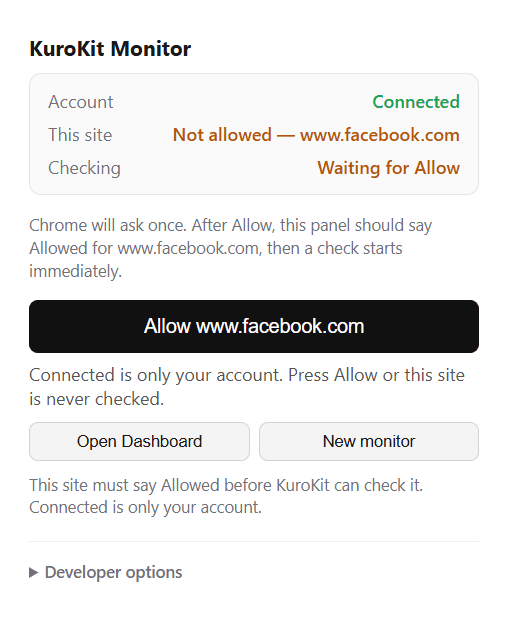
Ignore Last check until it has a time. Blank means the extension has not sent Wikipedia yet — look at the extension on the Wikipedia tab, not this page. After the first time appears, 0 alerts is normal (snapshot). Instruction 3 waits for a second check (~5–10 min).
Step 4 — wait 5–10 minutes
Wait about 5–10 minutes with the browser open. The first fetch only saves a snapshot and creates no change. A change needs a second fetch (about every 5 minutes).
Step 5 — paste Instruction 3
Only after Last check on the dashboard has a time (not blank). Success: at least one change with newer Wikipedia text. If Last check is still blank, stay on the Wikipedia tab and look at the KuroKit panel — This site must say Allowed for en.wikipedia.org. Zero events after a timestamp is the first snapshot; wait ~5–10 minutes for a second check. Do not keep pasting this.
Check whether the KuroKit Wikipedia tutorial monitor is receiving changes. Do not fetch any web pages.

1. Call listMonitors and find the monitor named "Wikipedia Recent Changes (MCP tutorial)" (or use the monitor id from the previous createMonitor).
2. Call getEvents with that monitorId and limit 10.

Tell me only:
- how many events came back
- created_at of the newest event
- a few lines of changed text (do not paste the full tool result)

If zero events: first check Last check on the dashboard. If it is still blank, they have not Allowed Wikipedia in the extension on the Wikipedia tab (This site must say Allowed for en.wikipedia.org). If Last check has a time, this is the baseline snapshot — wait for a second fetch (~5–10 min). Ask me to retry. Do not invent events.
Step 6 — paste Instruction 4 (optional)
Frees the plan slot. Skip if you want to keep watching Wikipedia.
Delete the KuroKit tutorial monitor. Do not fetch any web pages.

Call listMonitors, find "Wikipedia Recent Changes (MCP tutorial)", then call deleteMonitor with that monitorId. Confirm listMonitors no longer includes it.
After the test: watch your own URL
Pick one example. Replace the placeholder words, then paste the whole box into the assistant. Examples A and C create a new monitor. Example B uses one you already watch on the dashboard. Then it tells the assistant what to do when something changes (draft an email, add a spreadsheet row). Keep the extension Connected and Allow the site in the popup.
The free plan has one monitor: delete the Wikipedia test first (Step 6). KuroKit will not wake the assistant by itself — later, say the check phrase in the example (for example “check prices”). Sending mail or writing a Google Sheet only works if your assistant already has those tools; otherwise it should give you a draft to copy.
The assistant cannot reliably pick the watched area on the page yet. The dashboard has a click-to-select tool. If a watch stays empty, set the area there.
Example A — price change → spreadsheet + email draft
Replace: the page URL, what to watch (for example monthly price), and the Google Sheet name.
Watch this page: https://REPLACE_WITH_PAGE_URL
Tell me when REPLACE_WITH_WHAT (for example: monthly price) changes.

Create a new KuroKit webpage monitor.
I will Allow this site in the extension and keep the browser open.
If you cannot pick the watched area reliably, do not guess the whole page — tell me to select it on the KuroKit dashboard.

When I later say “check prices”: use KuroKit to see if this monitor has a new change.
- If nothing new, reply in one sentence.
- If it changed: (1) append a row to my Google Sheet named REPLACE_WITH_SHEET_NAME with date, URL, old value, and new value. (2) Draft a short email to me summarizing the change. Do not send it until I say send.
Example B — a monitor you already have → email draft
Replace: the monitor name as shown on the KuroKit dashboard. Optional: what a change means (for example Apply now, seats left, or Add to cart).
I already have a KuroKit monitor. Do not create a new one.

Call listMonitors and find the one named: REPLACE_WITH_MONITOR_NAME
If more than one matches, ask me which id to use.

This is a job / signup / restock watch. A useful change looks like REPLACE_WITH_TRIGGER_TEXT (for example: Apply now, seats left, or Add to cart).
I will keep the extension Connected and the site Allowed.

When I later say “check this listing”: use KuroKit getEvents on that monitor. Do not fetch the page yourself.
- If there is a new change: draft an email I can send (a job application, or asking whether signup/stock is still open). Use [NAME] and [DATE] for anything you do not know. Do not send it.
- If nothing changed, reply in one sentence.
Example C — announcement / policy → summary + sheet + email draft
Replace: the page URL, what the page is (for example school announcements or a privacy policy), and the Google Sheet name.
Watch this page: https://REPLACE_WITH_PAGE_URL
This page is: REPLACE_WITH_PAGE_KIND (for example school announcements, a privacy policy, or product updates).
Tell me when the main content changes.

Create a new KuroKit webpage monitor.
I will Allow this site in the extension and keep the browser open.
If you cannot pick the main content area, tell me to select it on the KuroKit dashboard.

When I later say “any news”: use KuroKit to see if there is a new change.
- If there is: write a 3-bullet summary, then (1) draft an email to me with those bullets (do not send), and (2) append a row to my Google Sheet named REPLACE_WITH_SHEET_NAME with date, URL, and the three bullets.
- If nothing changed, reply in one sentence. Do not invent a summary.
If it did not work
- “Not in the MCP catalog”: KuroKit is not a store listing. Add a custom / manual remote server with URL https://mcp.kurokit.com/mcp in lowercase.
- No KuroKit tools, or 401: add https://mcp.kurokit.com/mcp as a custom remote URL (not from a catalog), then create a token at https://kurokit.com/dashboard/mcp and paste it into the agent’s settings (not into chat). Reload MCP. Do not open https://kurokit.com/oauth/authorize unless the MCP app itself opened a page whose address bar has ?client_id=.
- Plan limit: the free plan has one monitor. Delete an old one (Step 6 or the dashboard).
- Dashboard Last check still blank after 10 minutes: open the Wikipedia tab (not the dashboard), click KuroKit. This site must say Allowed for en.wikipedia.org. Connected is only the account. Closing the browser or sleeping the computer also stops checks. First check is a snapshot (0 alerts) — Instruction 3 needs a second check.
For agents (you can skip this)
Do not fetch this page or other URLs. Use only the pasted instruction and KuroKit MCP tools. For this test do not change the URL or selectors. css_scrape will not fetch until the human Allows en.wikipedia.org and keeps the browser open.
Target: English Wikipedia Special:RecentChanges. Mode: any_change. Channel: mcp_event. First fetch is a baseline snapshot — wait for a second check (about 5–10 minutes) before getEvents.